Imgica AI
Opening ai photo filters.0.0s
Imgica AI
Opening ai photo filters.0.0s
Styles & Filters · The image studio
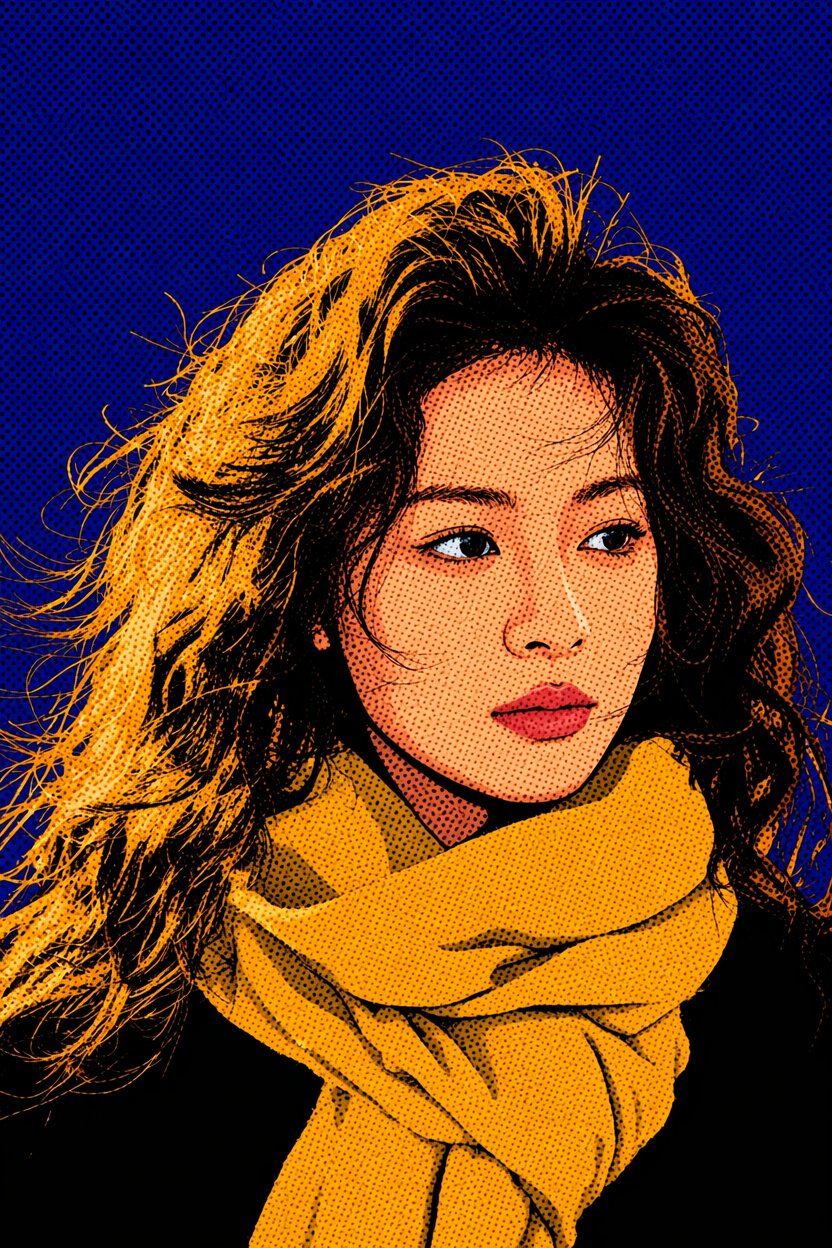
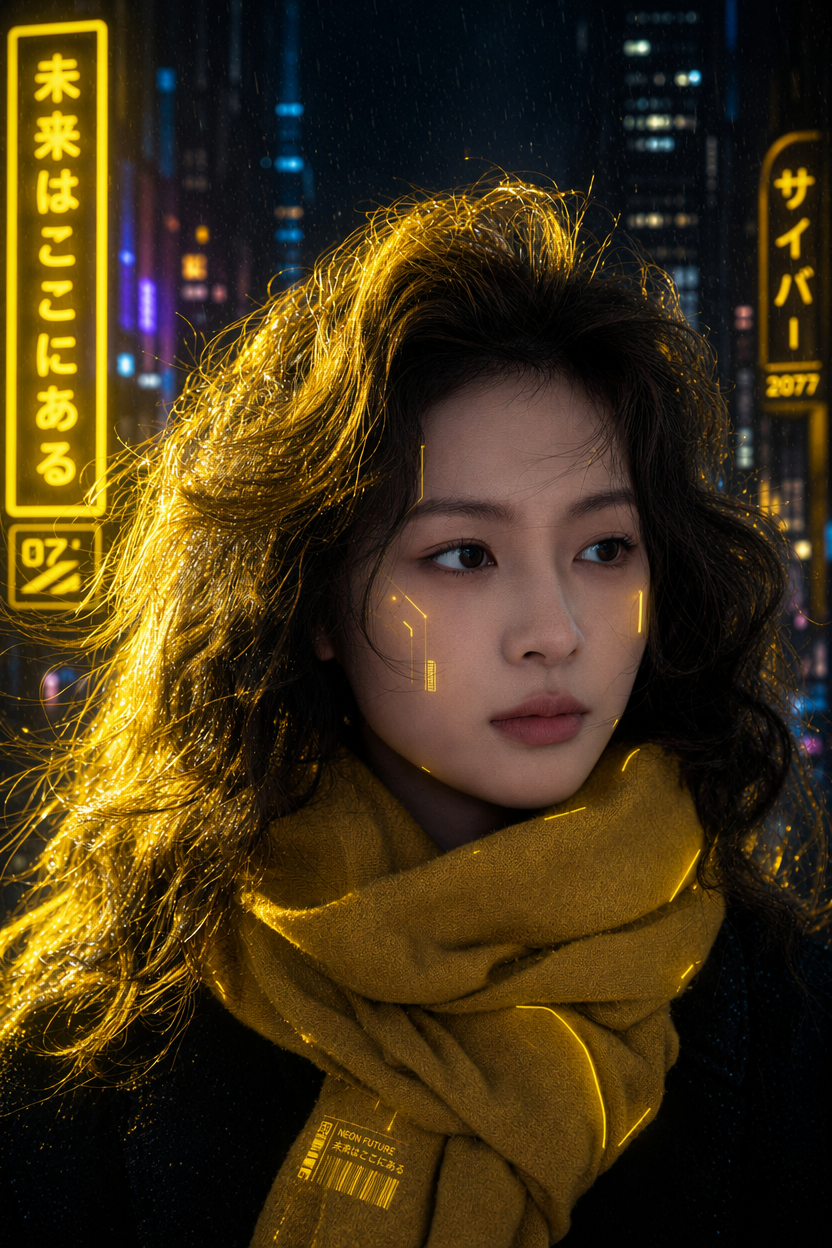
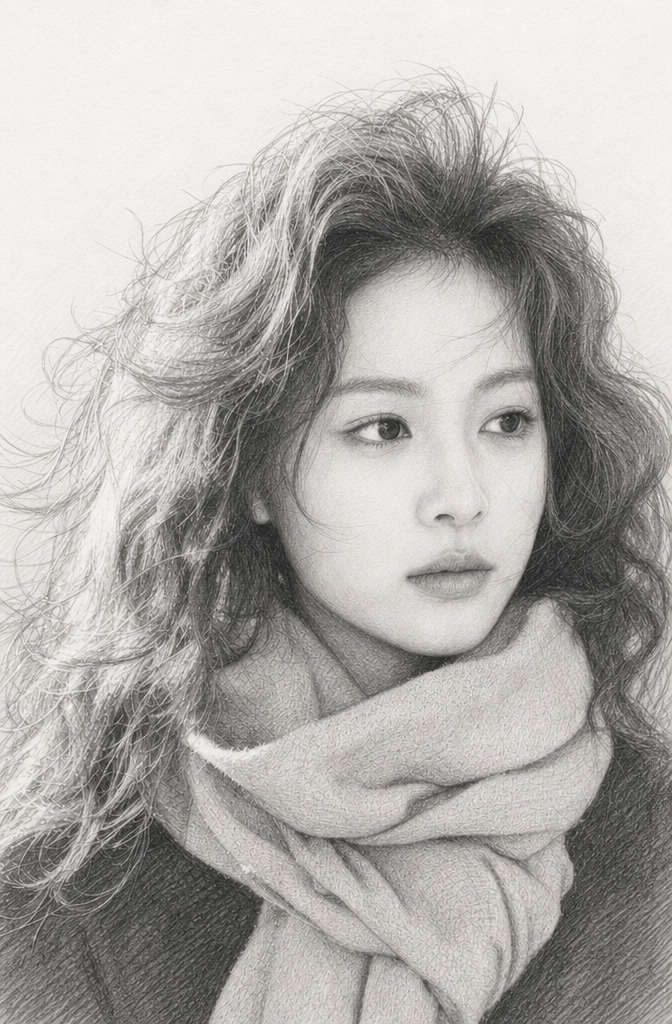
A tint slides color across the top of a photo. These redraw it: texture, line and light rebuilt in the style you pick, while the person stays the person and the pose stays the pose. Upload once and audition the whole wall.
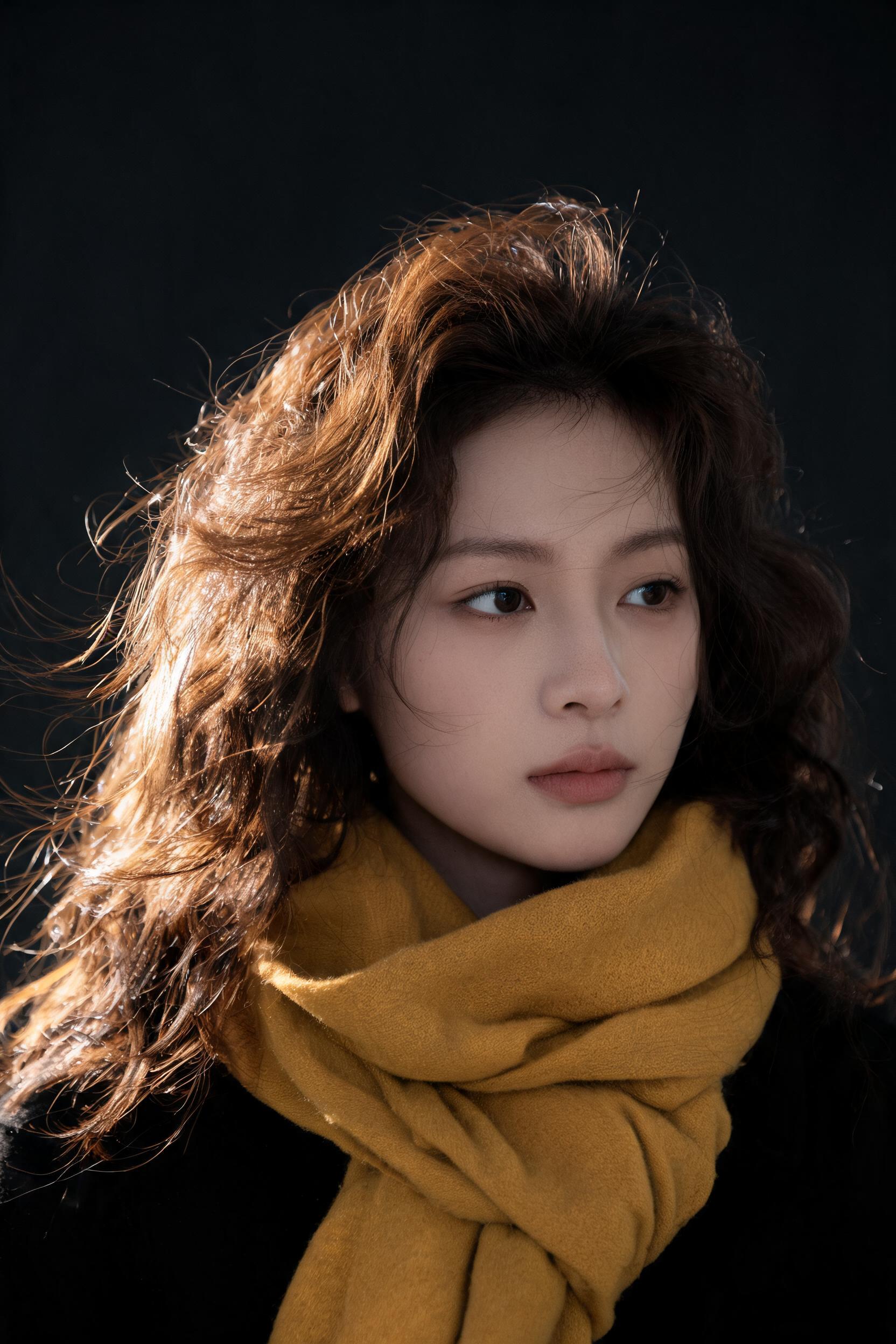
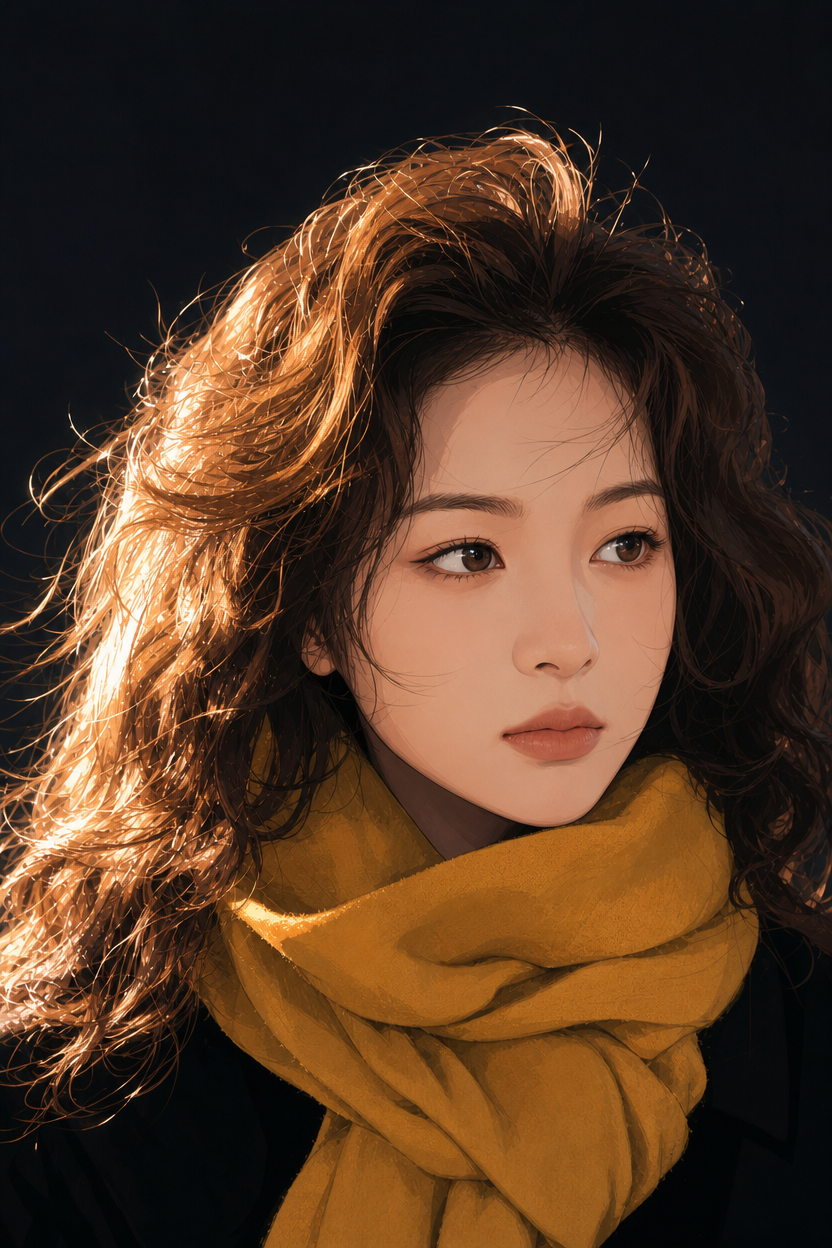
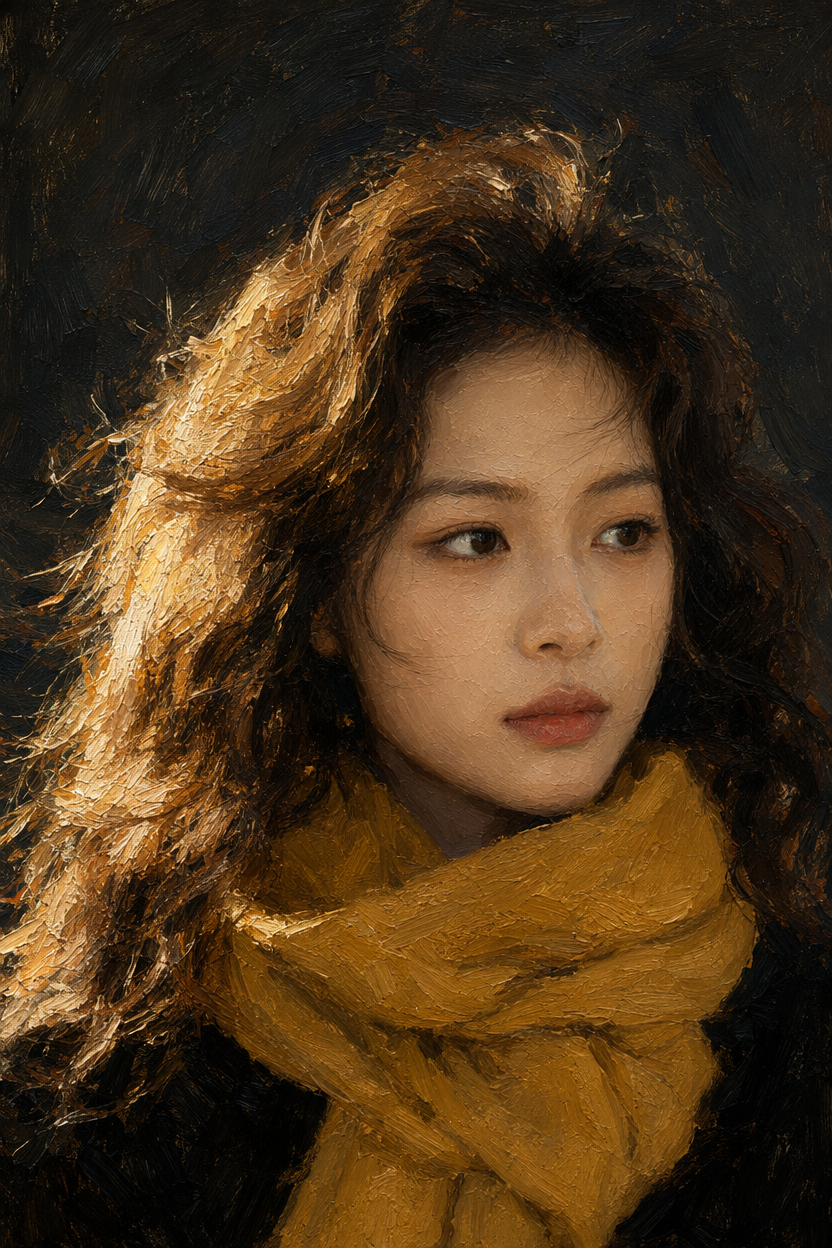
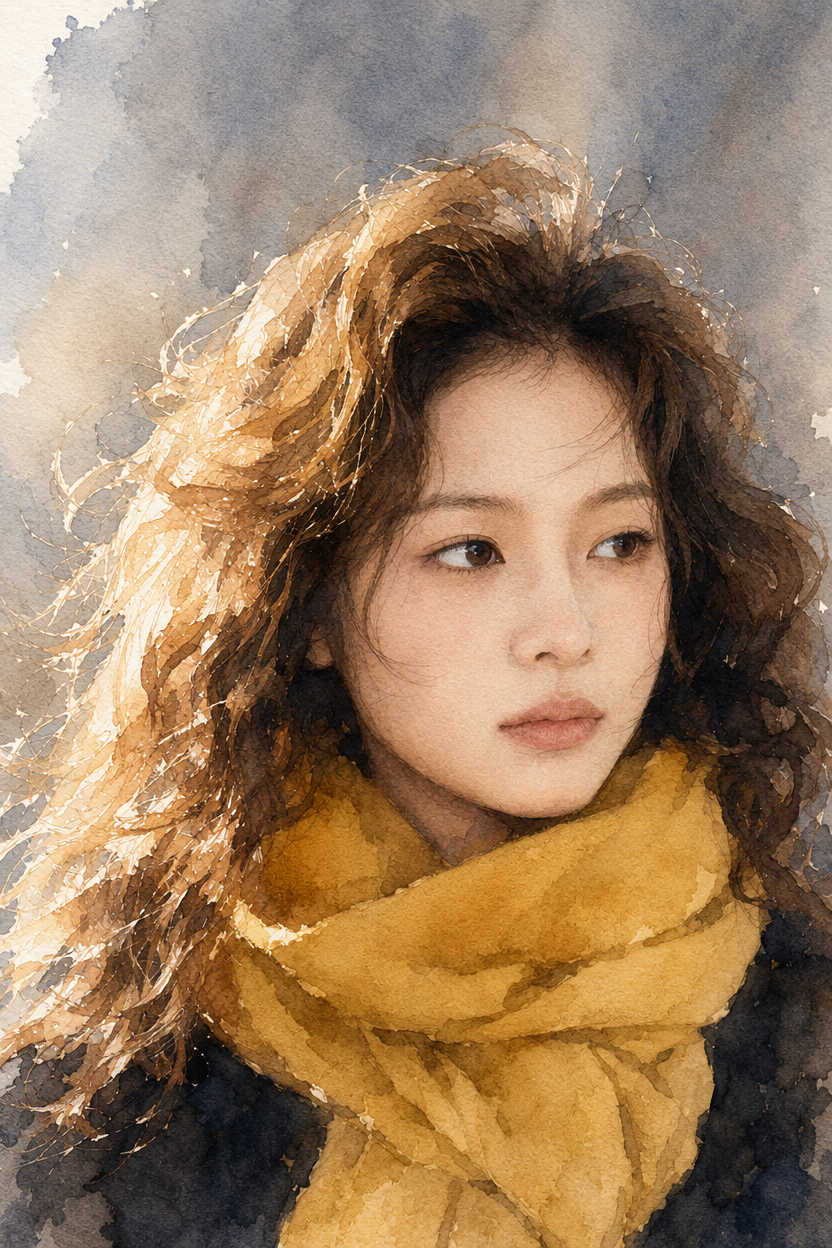
 Original
Seven frames, one photograph. The six restyles are real GPT Image 2 edits of the same photo, made on this pipeline. Same face, same pose, new medium.
01 · The wall
Grouped the way they hang in the studio. Every chip is a house recipe with a registered name, so what you pick is what you get.
Fantasy· 14
Artistic· 11
Photo· 7
Modern· 10
Anime wears the sun because it is the most picked chip on the wall.
Try any chip free02 · The mix
Style mixing lives in the studio, right next to the wall. Every position of the slider is a different filter.
One chip is the default; the second is one click away. Load Style A, load Style B, and drag the split. Watercolor over Anime at 60 to 40 reads as a painted cel. Drag past the middle and the ink starts winning.
42 styles taken two at a time is 861 pairs, and the slider turns every pair into a range.
Mix two styles free03 · The finish
The receipt is the whole spec. The only thing a higher tier buys is a longer, finer render of the same held subject.
Fast proofs a style against a photo in the least time. Standard is preselected and right most days. Fine spends longer on the render, for detail that survives prints and close crops.
Whatever the tier, the render opens against your original on a before and after slider, so you can check the hold at the eyes and the hands before you download.
Run a test strip freeFinish register
A classic filter shifts the colors sitting on top of your picture. An AI photo filter repaints the picture itself: the engine redraws texture, line and light in the style you pick while keeping the subject, pose and framing of the original photo.
Upload the photo, pick the Anime chip from the style wall, and generate. Ghibli and Manga Ink sit on the same shelf if you want a softer or inkier take. A before and after slider lets you compare the anime version against the original before you download.
Yes. Style mixing takes any two chips from the wall and blends them with a ratio slider, so you can run Watercolor over Anime at 60/40 or any other split you drag your way to. One style is the default; the second is one click away.
The point of the tool is that it does not. The subject is preserved: same person, same pose, same composition. Only the medium changes around them, and the output keeps the aspect ratio of your source photo.
Fast is the test strip, good for checking whether a style suits the photo. Standard is the default and the right answer most days. Fine spends longer on the render for detail that holds up in prints and portfolio pieces.
You get free tokens at signup, no card required, and they cover your first restyles. When you outgrow them, plans are one time payments rather than subscriptions. Everything you make is yours.
05 · Nearby
Restyling changes the medium. These neighbors change the photo, the size, or the starting point.
06 · Begin
The wall is stocked and your first restyles are covered. Pay once if you outgrow the free tokens. Nothing auto-renews. Ever.
Free tokens at signup · no card required · everything you make is yours