Imgica AI
Opening expand image.0.0s
Imgica AI
Opening expand image.0.0s
Image editing · Expand image
Grow the canvas past the border and the model paints the scene onward: more sky over the skyline, more table around the product, more street on either side of the portrait. Press a ratio or drag the handle and watch a real 4:3 photo step out into its 21:9 result.
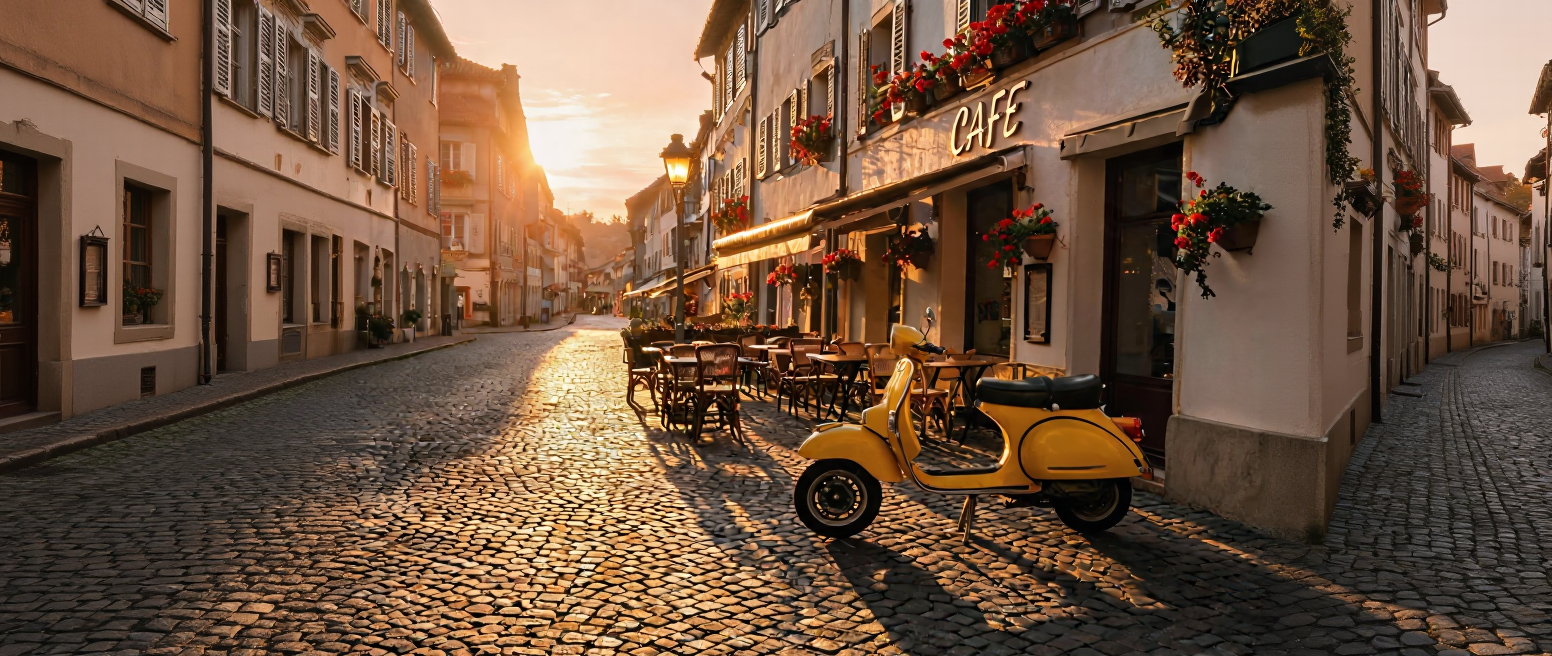
This demo hides a real result, not a mockup. The EA Edit engine in our editing studio took a 4:3 street photo and widened it to 21:9, so every cafe front and cobblestone past the dashed marks is paint the model added.
01 · The two handles
Both run through the same engine and cost the same pass. The only difference is who decides the shape: your hand on an edge, or the destination's ratio.
Method one · Pull an edge
Take the border and pull it outward: only the sky, only the left, or all four sides at once. Each edge moves on its own, so the photo grows exactly where you point and nowhere else.
In · a pulled borderOut · a wider scene
Method two · Target an aspect
Pick the shape the destination wants, square to 16:9 to whatever the brief says, and the model fills the canvas until it fits. No preset close enough? The edges are still yours.
In · a target ratioOut · the exact canvas
Expansion paints outside the border. When the problem sits inside the frame, a repaint is the right tool, not a wider canvas.
Open AI Inpainting02 · The formats
Each destination prints its own shape. Expansion reshapes the canvas to fit it, instead of cropping away the part of the photo you actually liked.
The portrait was right for the feed and wrong for the site header. Pull the top and both sides outward and the same shot becomes a banner, sky and street painted to match.
Product shots ship square; video thumbnails want 16:9. Name the ratio and the table, the wall and the light keep going until the canvas fits the player.
Feed, header, thumbnail, story. Expand the master once per destination instead of reshooting the scene or cropping away the part you liked.
All of it happens in one editor, beside the eraser and the inpainter, on the same pool of tokens.
Part of the Image Editing floorThe conversion register
03 · The second witness
The demo up top widened a landscape. This pass runs the other way: a vertical studio shot pulled out to 16:9, the subject carried between the dashed marks while the engine paints the rest.
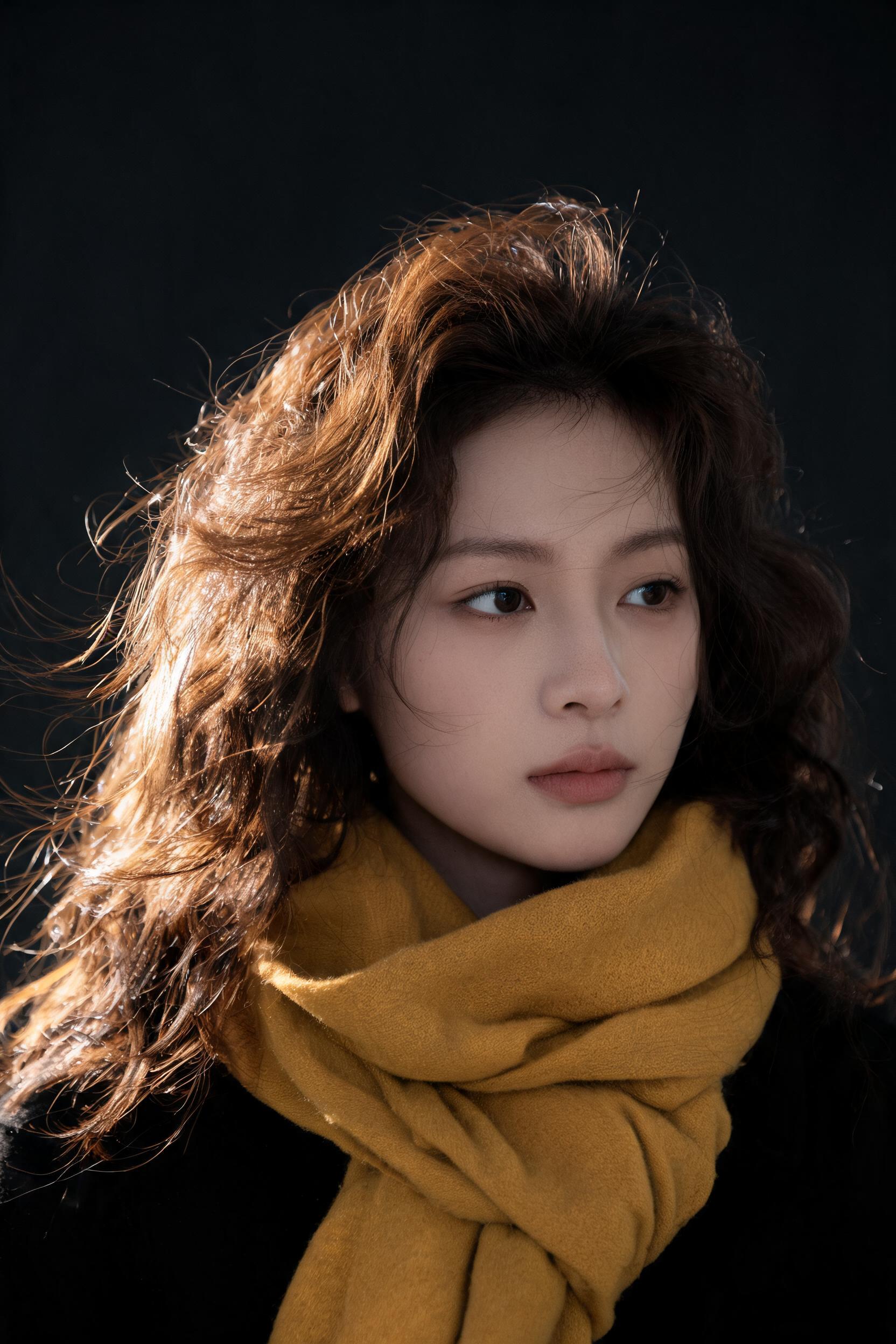
Right for the feed, too narrow for the header. The brief: make it 16:9 without recropping the pose.
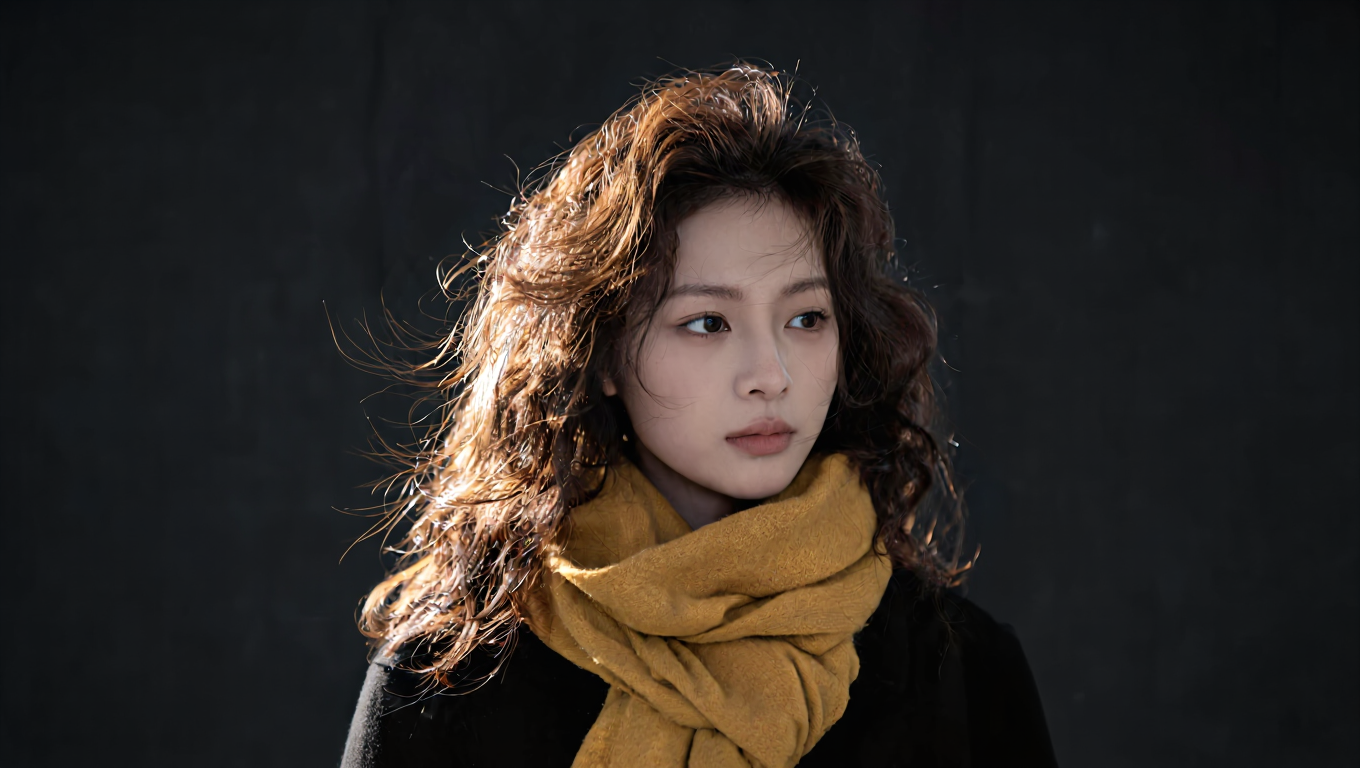
“extend the studio scene beyond the frame on the left and right, change nothing inside the original photo”
The whole instruction, as typed
If you can type that sentence, you can run this pass. Expand your own photo free
04 · The honest line
One sentence of honesty up front saves a support ticket later. Here is exactly what the new pixels are, and what they are not.
The model paints a plausible continuation of your scene, not a recovery of what was there.
It never saw outside your frame. An expansion reads the light, the grain and the perspective at your border, then continues them past it. Treat the result as new paint mixed to match the old, and it will keep its side of the deal.
Test the honesty on your own photoEvery pass renders into version history. Step back to any earlier state, compare passes side by side, or push a good one even wider.
The crop and expand tool runs its own model set inside the Image Editing studio, chosen for continuing a scene it was handed rather than inventing a new one.
If the street bends the wrong way, run it again. Same photo, new continuation, and both passes stay on the record.
It grows the canvas past your photo's original border and paints the new area so the scene continues: more sky above a skyline, more table around a product, more room on either side of a portrait. You decide how far it grows, either by dragging edges outward or by picking a target aspect ratio.
It can uncrop, but honestly: the result is a plausible continuation of your scene, not a recovery of what was really outside the frame. The model never saw the wider shot, so it paints what most likely belongs there rather than what actually was there.
Open the tool in the Image Editing studio, pick the ratio the destination wants, and the model fills the canvas to reach it. If no preset fits, drag any single edge outward instead and expand only the side that needs room.
You get free tokens at signup, no card required, so you can try expansion on your own photos first. When you need more, plans are one time payments rather than subscriptions, and everything you make is yours.
The crop and expand tool runs its own dedicated model set inside the Image Editing studio, chosen specifically for continuing a scene it was handed rather than inventing a new one. You never have to guess from a general model list.
Run it again. Every render is kept in version history, so you can compare passes, step back to an earlier one, or push a good result even wider. Your original image is never overwritten.
06 · Begin
Free tokens at signup · no card required · everything you make is yours